Working with Roll Torn Paper Infographic Templates in Visual Communication Projects
A roll torn paper infographic is a vector-based design template that uses the visual language of ripped paper edges, layered textures, and sequential framing to present information in stages. The torn paper effect creates visual separation between content blocks while suggesting progression, connection, or transformation. For designers, marketers, educators, and business owners who regularly build presentations, reports, proposals, or social media graphics, this type of template reduces the time spent constructing layout frameworks from scratch. Instead of manually drawing uneven edges, shadowing each layer, and aligning icons with descriptive text zones, you work with a pre-structured file where the core visual mechanics are already resolved.
Understanding where this asset fits into a broader creative or business process starts with recognizing that most visual communication projects share a common sequence: gather raw information, determine the logical structure, select a visual format that supports that structure, build the layout, refine the details, and export for the intended medium. The roll torn paper infographic template intervenes at the format selection and layout construction stages, compressing hours of manual vector work into a starting point you can customize within minutes. This matters when you are preparing a client deck on a Monday morning, building out a course module with limited design support, or updating a quarterly report that needs to look polished without requiring a dedicated designer for every revision cycle.
What the Template Contains and How It Functions
The file package includes AI, EPS, JPG, and SVG formats, which means you can open the editable vector version in Adobe Illustrator or compatible software and also have flattened raster and vector versions for quick placement into other documents. The 300dpi resolution ensures that printed materials retain sharpness whether you are producing a tabloid-sized poster or a section within a multi-page brochure. All graphics are 100% vector, so scaling the torn paper panels, resizing icons, or recoloring background elements does not degrade quality. The text layers, shapes, and color palettes remain editable, allowing you to match brand guidelines or project-specific color schemes without starting over.
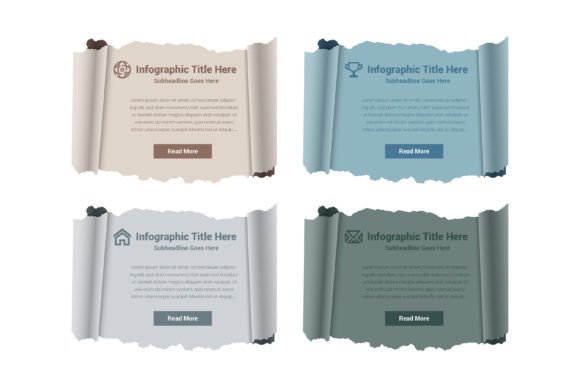
The structural elements include torn paper panels arranged in horizontal or sequential layouts, space for icons, description areas with labels, and a read more button component. Shadowing and pastel or neutral color treatments give the panels physical depth without overwhelming the information they contain. This combination of frame, space, and typographic zones makes the template suitable for workflow layouts, numbered step sequences, comparison diagrams, option displays, banner headers, and web design mockups. When you look at the visual hierarchy built into the template, you see that each torn panel functions as a self-contained information unit while also relating to adjacent panels through consistent edge treatment and spacing. This dual readability—individual clarity and group coherence—is what separates a well-constructed infographic template from a decorative background.
Integrating Torn Paper Infographics into Project Workflows
Before a project reaches the visual execution stage, you typically clarify the message hierarchy. A torn paper infographic works best when your content has a natural sequence or a parallel structure. For example, if you are presenting four service tiers, three phases of implementation, or five key findings, the torn paper panels create immediate visual grouping without needing to draw boxes or rely on basic grid divisions. The irregular edges signal organic progression, which can soften data-heavy presentations and make process-oriented content feel more approachable.
Consider a marketing manager preparing a campaign proposal. The raw information includes target audience segments, channel strategies, timeline milestones, and budget allocations. Before opening any design file, you would outline which points need equal visual weight and which flow sequentially. The torn paper infographic template supports both scenarios. Horizontal torn strips can represent a timeline where each panel contains a phase name, an icon, a brief description, and a date marker. Vertical or grid arrangements of torn cards can display parallel options where each card holds a headline, supporting text, and a call-to-action button. Because the template includes icon placeholders and read more buttons, you are not just placing text on a background; you are guiding the viewer through information in a deliberate sequence.
During the layout construction phase, the editable nature of the file means you adjust the number of panels, the text content, and the color assignments to match your specific argument. If your brand uses a different set of pastel tones or requires high-contrast colors for accessibility, you modify the fill values directly in the vector file. The shadows beneath each torn panel are also editable, so you can increase or decrease depth depending on whether the graphic will appear on screen or in print. Screen displays often benefit from subtler shadows, while printed pieces can handle more pronounced depth without looking artificial.
Practical Customization and Software Considerations
When you open the AI or EPS file in Adobe Illustrator, each torn paper panel typically exists as a grouped set of shapes, text, and icon elements. Ungrouping or isolating layers lets you relocate panels, duplicate sections, or remove elements that do not fit your content structure. If you need five steps instead of four, you extend the layout by duplicating a panel group and adjusting the alignment. The vector nature of the file ensures that duplicated elements maintain identical edge quality and shadow consistency. This modularity is especially useful when building templates for recurring content types, such as monthly internal reports or weekly social media series.
For users who work primarily in presentation software like PowerPoint or Google Slides, the SVG and high-resolution JPG formats provide a bridge between full vector editing and slide-based workflows. You can place a JPG version as a static background and overlay text boxes that match the description areas, or you can import the SVG directly if your presentation software supports scalable vector placement. Keep in mind that SVG import behavior varies across platforms; testing the placement in your specific software version before committing to a full build saves troubleshooting time later.
Color customization follows standard vector editing practices. If you need to change the torn paper base color, select the corresponding shape and apply a new fill. Gradient treatments are also possible if your brand identity uses dimensional tones rather than flat colors. The icons provided in the template are similarly editable, either as standalone vector shapes or as font-based glyphs depending on how the original file was constructed. Confirm icon editability before starting a tight-deadline project, as some icon sets require access to specific typefaces installed on your system.
Organizing Assets for Team and Long-Term Use
A practical aspect of working with infographic templates is maintaining organization across multiple projects. When you download a file package containing AI, EPS, JPG, and SVG versions, establish a folder structure that separates editable source files from flattened outputs. Label customized versions clearly with project names and dates. If you modify the color palette or restructure the panel arrangement for a specific campaign, save that as a new master file so the original template remains intact for future unrelated projects. This approach prevents the gradual erosion of the base asset, which can happen when you repeatedly overwrite the same file across different client jobs.
For teams, consistency across presentations and marketing materials benefits from a shared set of customized templates. One person can adapt the torn paper infographic to match brand specifications—setting exact hex color values, adjusting shadow opacity, confirming font substitutions—and then distribute the branded version to team members who build individual slides, reports, or social graphics. This reduces the likelihood of off-brand color variations or inconsistent panel spacing appearing in final deliverables. The vector format supports this centralized customization approach because edits made to the master file propagate cleanly when team members work from that single source.
Quality Control and Output Considerations
Before finalizing any project that uses the torn paper infographic, review the alignment of text within each panel's description area. Editable text boxes in vector files can shift slightly when opened on different systems or when fonts are substituted. Convert text to outlines if you are sending the file to a printer and want to avoid font conflicts, but keep a separate version with live text for future edits. Check that shadow effects render consistently across export formats; some rasterization settings can alter shadow appearance when moving from AI to JPG or PNG outputs.
The read more buttons included in the template are designed for interactive contexts such as web layouts or clickable PDFs. If you are using the infographic in a static printed piece, you may choose to replace the button text with additional descriptive content or remove the button element entirely. In digital formats, ensure that the button placement aligns with the actual clickable area if you are overlaying HTML or PDF interaction zones on top of the graphic. Misaligned hit areas create friction for viewers and undermine the professional finish that the template otherwise supports.
Applications Across Contexts and Platforms
The torn paper aesthetic carries a tactile, approachable quality that works across different communication contexts. Educational materials benefit from the visual segmentation because students can track progress through numbered panels without feeling overwhelmed by dense paragraphs. Business proposals use the layered structure to present options or phased plans in a format that invites comparison without forcing immediate decisions. Social media graphics leverage the photographic texture of torn paper edges to stand out in feeds dominated by flat-color rectangles and standard border treatments.
Web designers can use the infographic in hero sections, feature breakdowns, or process explanation pages. The SVG format integrates into responsive layouts when properly configured, and the horizontal torn paper strips can stack vertically on mobile screens without losing readability. When placing the graphic in a web context, consider how the visual weight of the torn paper panels interacts with surrounding page elements. Light pastel backgrounds may need additional contrast against white page backgrounds, while darker website themes might require inverted color treatments that you apply directly in the vector file before export.
Print applications—brochures, flyers, stationery inserts, index cards—benefit from the 300dpi resolution and the physical texture that the torn paper effect evokes. When a printed piece references paper texture within its design, it creates a subtle meta-commentary on the medium itself, which can enhance the perceived quality of the material. For stationery and card designs, the torn paper framing can highlight contact information, service descriptions, or promotional offers without relying on standard box borders that read as generic.
Making the Template Part of Your Regular Toolkit
Integrating a specific design asset into ongoing work requires recognizing when it solves a recurring problem. If you frequently build step-by-step guides, tiered pricing displays, or phased project summaries, the torn paper infographic template addresses a pattern rather than a one-off need. Keep the file accessible in your project resources folder. When planning content, instead of starting with a blank canvas and a vague idea of visual structure, you can quickly assess whether the torn paper format matches the information architecture you are working with. This shift from reactive design to proactive template matching reduces the friction between having an idea and seeing it take visual shape.
The file's compatibility across major vector editing environments, combined with its organized layer structure, makes it a dependable component in both solo and collaborative workflows. Whether you are a freelance designer delivering client work, a small business owner creating your own marketing collateral, or an educator building course materials, the practical value lies in how reliably the template translates your content into a clear visual sequence. The torn edges, shadow treatments, and icon integration handle the aesthetic heavy lifting, leaving you to focus on the accuracy and persuasiveness of the information each panel contains.